
Export to CSV
Allure Report can generate CSV reports containing the same test data that goes into the HTML report, which you can open and analyze in external software, such as Microsoft Excel or Google Sheets.
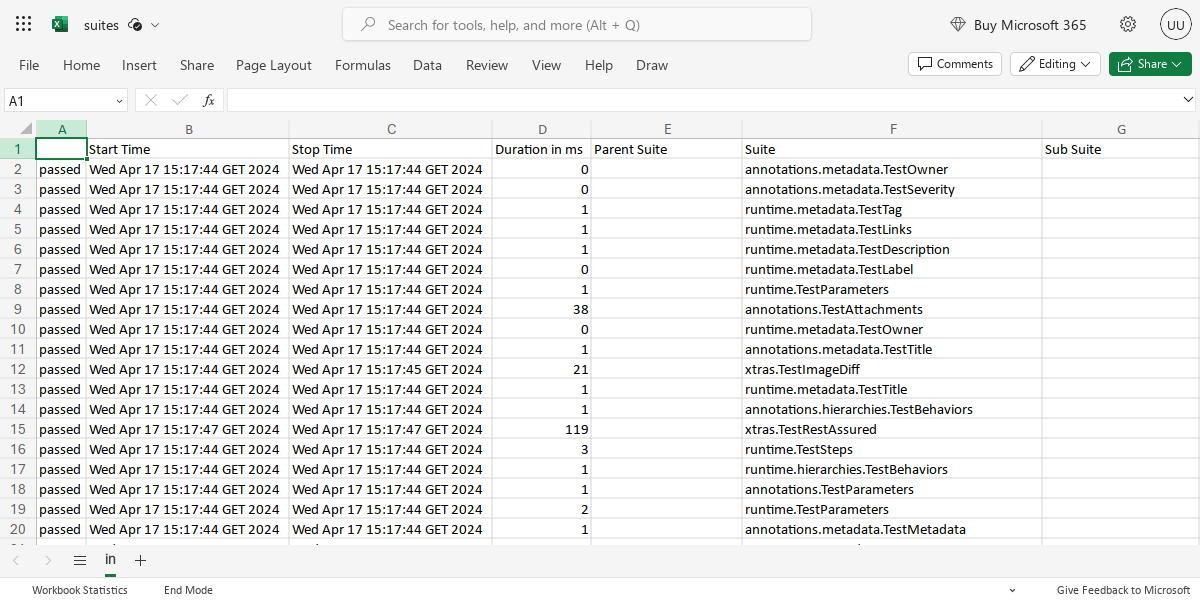
Allure Report 3
Allure Report 3 has a CSV plugin, which can generate a CSV report along with or even instead of the HTML report automatically, if enabled in the configuration file.
import { defineConfig } from "allure";

export default defineConfig({
  name: "Allure Report",
  output: "./allure-report",
  plugins: {
    csv: {
      options: {
        fileName: "report.csv",
      },
    },
  },
});
The CSV plugin accepts the following options:
| Option | Description | Type | Default |
|---|---|---|---|
fileName | Name of the report file | string | allure-report.csv |
fields | Fields to include in the report | { header: string; accessor: keyof T | ((result: T) => string | undefined) }[] | All fields |
sort | Sorting function | (a: T, b: T) => number | Default order |
filter | Filtering function | (a: T) => boolean | No filtering |
You can also manually generate the CSV report via the CLI:
allure csv [options] <results-directory>For example, this will generate a report.csv file in the current directory from result files located in the allure-results subdirectory of the current directory:
allure csv --output report.csv ./allure-resultsTIP
If no --output option is provided to the allure csv command, it respects the output parameter of the configuration file, and saves allure-report.csv to the directory specified there.
Allure Report 2
Allure Report 2 automatically generates CSV reports along with HTML reports.
You can get these files by using the Download CSV file on top of the corresponding tab in the HTML report or just by browsing to the data subdirectory in the output directory.
Suites data
To get the suites CSV file, click the Download CSV button on the Suites tab, or just open the file directly as data/suites.csv in the output directory.
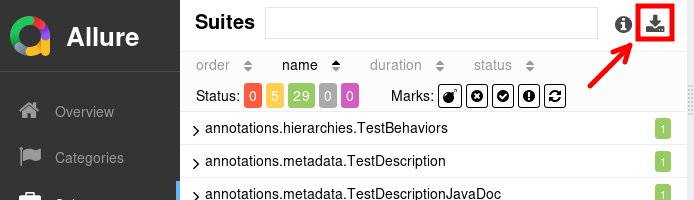
Each row in the file describes a single test result, with the following columns.
- Status — the test status. Possible values are: “trivial”, “minor”, “normal”, “critical”, and “blocker”.
- Start Time, Stop Time — information about when the test was executed, with seconds precision.
- Duration in ms — how long it took to complete the test, with milliseconds precision.
- Parent Suite, Suite, Sub Suite — the test's location in the suite-based hierarchy.
- Test Class, Test Method — the test's class and method names, as reported by the Allure adapter.
- Name — the test's title.
- Description — the test's description.
Behaviors data
To get the behaviors CSV file, click the Download CSV button on the Behaviors tab, or just open the file directly as data/behaviors.csv in the output directory.
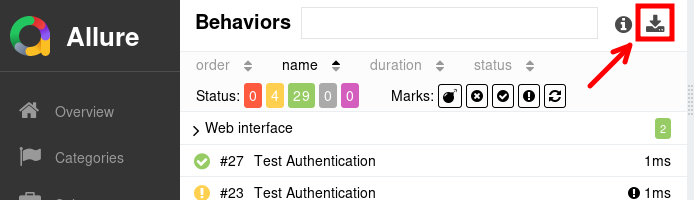
Each row in the file shows aggregate data about test results with identical behavior-based labels, with the following columns.
- Epic, Feature, Story — the tests' location in the behavior-based hierarchy.
- FAILED, BROKEN, PASSED, SKIPPED, UNKNOWN — number of tests with each test status in the given epic, feature and story.
Categories data
To get the categories CSV file, click the Download CSV button on the Categories tab, or just open the file directly as data/categories.csv in the output directory.
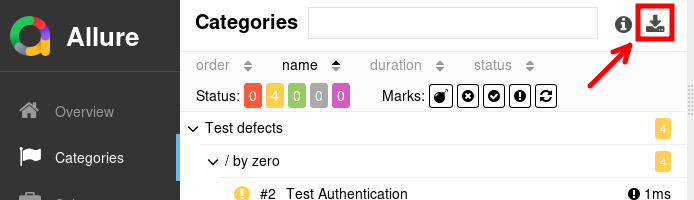
Each row in the file shows aggregate data about test results from the same category, with the following columns.
- Category — the name of a test category.
- FAILED, BROKEN, PASSED, SKIPPED, UNKNOWN — number of tests with each test status in the given category.